 Zone 2 Buddy
Zone 2 training only works if you actually stay in Zone 2.
Zone 2 Buddy taps your wrist the moment you drift — down-taps to ease off, up-taps to push — so your easy days build an aerobic base instead of turning into junk miles.
Zone alerts are free. Zone 2 Buddy Pro turns your iPhone into a bar-mounted live dashboard, shows your aerobic base building week over week, and writes a plain-English recap of your training week entirely on your phone.
Free zone alertsNo accountNothing leaves your devicesRequires Apple Watch
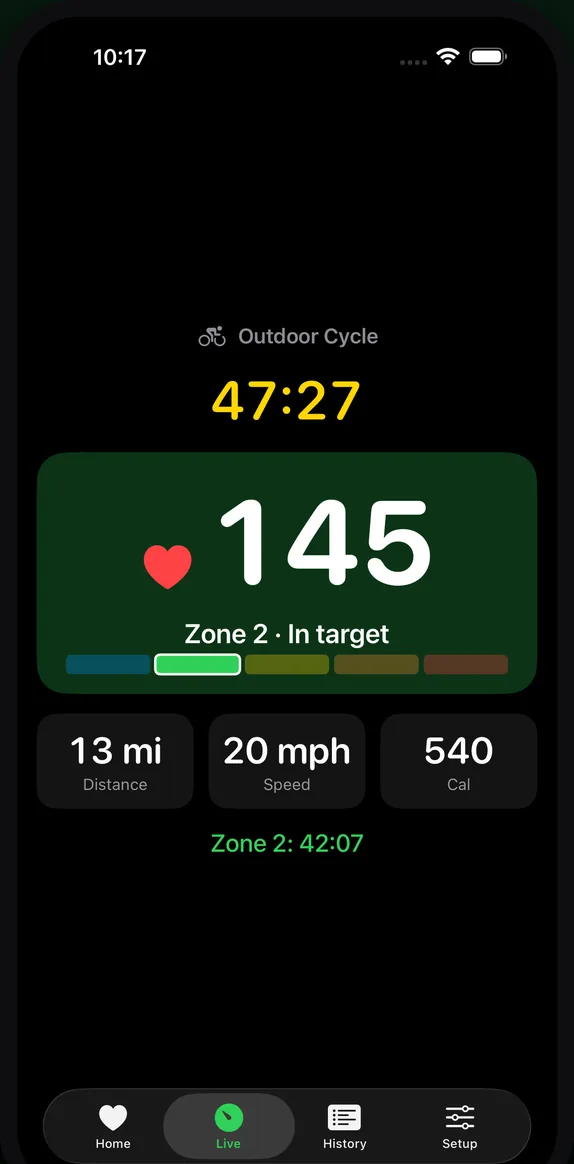
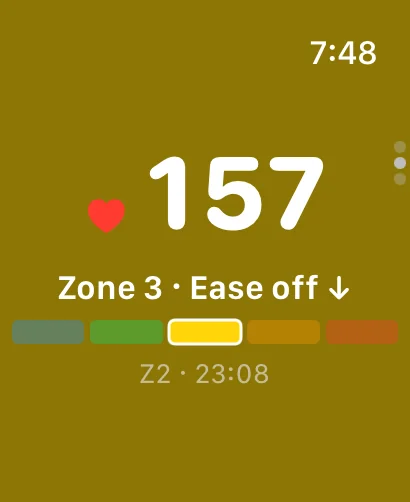
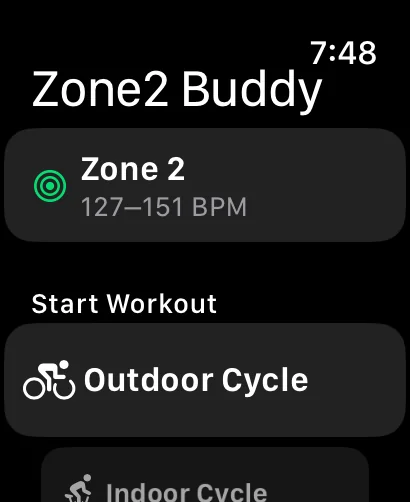
Start on your watch, put your phone in your pocket, train by feel.
No account. No sign-up. Your health data never leaves your devices.
Set your zones in under a minute
Percentage of max heart rate, or the Karvonen (heart rate reserve) method using your resting HR straight from Health.
Pick your sport
82 workout types, from outdoor and indoor cycling to running, rowing, hiking, swimming, strength training, and skiing.
Train
Distinct haptics for too-high and too-low, plus optional spoken alerts that duck your music instead of stopping it.
Every session saves as a real Apple Health workout with heart rate, calories, distance, and GPS route. It closes your rings and shows up in Fitness.
The thing on your wrist that keeps you honest.
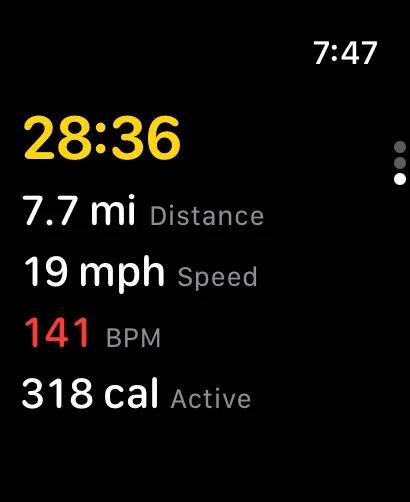
Your watch keeps you honest
A tap the moment you drift out of Zone 2 — a distinct haptic for too high and another for too low — plus optional spoken alerts that call out your heart rate and whether to ease off or push.
- Real-time zone alerts on Apple Watch, haptic and spoken
- All 82 workout types with GPS route recording
- Workouts written to Apple Health
Bar-mounted and glanceable
Mount your iPhone on the handlebars for big, glanceable heart rate, zone, speed, and distance streamed live from your watch. A Lock Screen Live Activity keeps the numbers visible without unlocking.
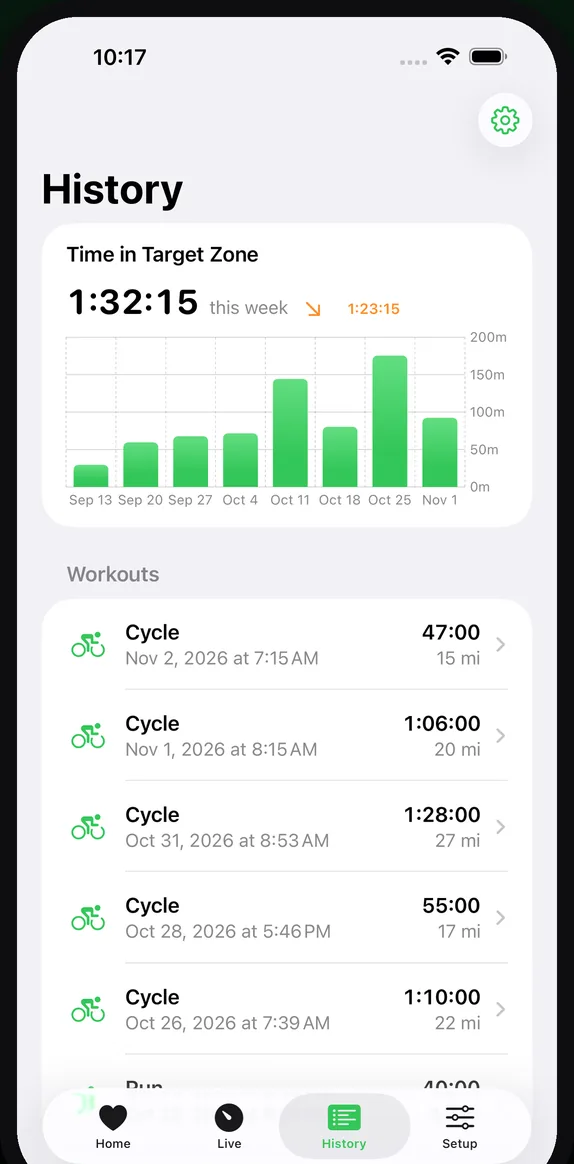
Watch your aerobic base build
Time-in-zone charts week over week, so you can watch your aerobic base build instead of guessing. Workout history with time in zone for every session stays free.
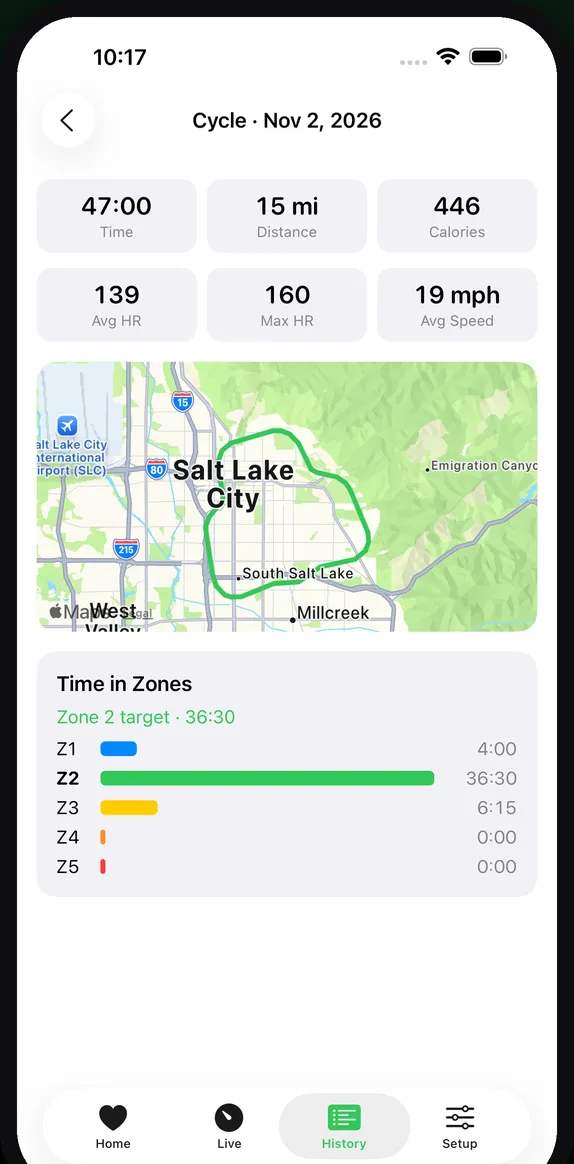
Every ride, mapped
Route, heart rate, calories, distance, and time in each zone for every workout. Saved to Apple Health, so it shows up in Fitness alongside everything else.
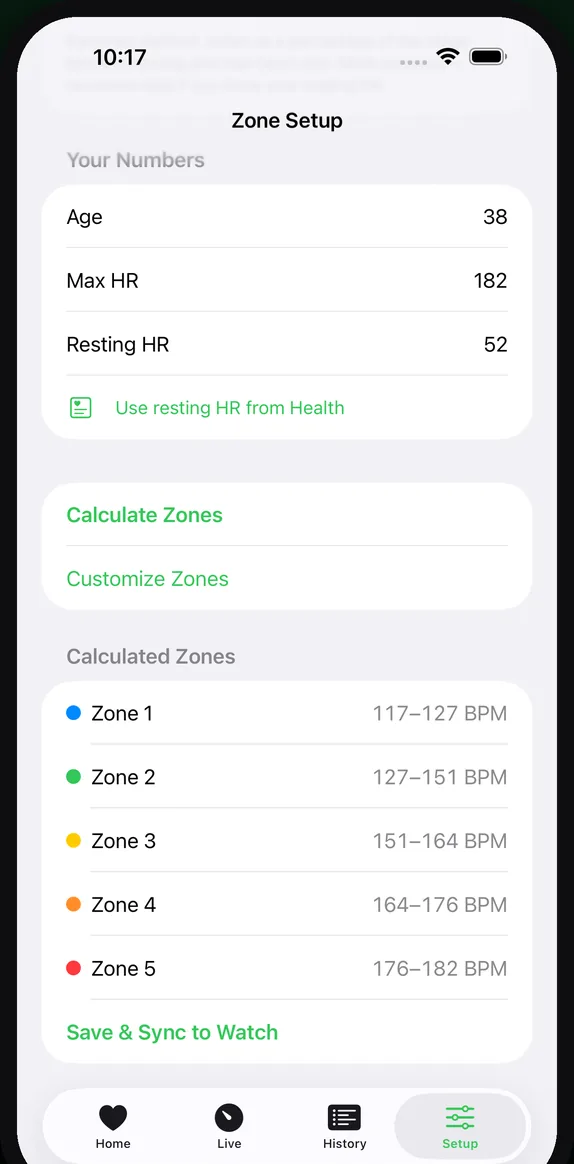
Your zones, your physiology
Five-zone setup with two formulas: percentage of max heart rate, or the Karvonen (heart rate reserve) method with your resting heart rate from Health. Pro adds custom zones, so you can tune every boundary to your own physiology.
82 sports Free
Every Apple Watch workout type, indoor and outdoor, each with the right distance metric and route recording.
Spoken alerts Free
Optional voice coaching that calls out your heart rate and whether to ease off or push. It ducks your music instead of stopping it.
Real Health workouts Free
Heart rate, calories, distance, and GPS route, saved as a genuine Apple Health workout that closes your rings.
Weekly Recap Pro
A plain-English read on your training week, generated entirely on your iPhone with Apple Intelligence. Nothing is uploaded. Requires an Apple Intelligence-capable iPhone.
Custom zones Pro
Tune every zone boundary to your own physiology instead of the formula defaults.
Strava upload Pro · Coming
Send workouts with route, heart rate, and laps to Strava, automatically if you want. Coming in a future update.
Zone alerts stay free. Pro is for the rest.
Try Pro free for 7 days with the annual plan, or pay once and keep every Pro feature forever.
Free
$0
- Real-time zone alerts on Apple Watch — haptic and spoken
- All 82 workout types with GPS route recording
- Workouts written to Apple Health
- Five-zone setup with two formulas
- Workout history with time in zone for every session
Zone 2 Buddy Pro
Everything in Free, plus the live dashboard, weekly trends, weekly recap, and custom zones. Strava upload is coming.
Zone 2 Buddy Pro is available as a monthly or yearly subscription, or a one-time lifetime purchase. Subscriptions renew automatically unless cancelled at least 24 hours before the end of the current period. Payment is charged to your Apple Account. Prices in USD; local pricing is shown in the App Store. Manage or cancel any time in your Apple Account settings — see Support.
Questions
Why Zone 2?
Most endurance adaptation comes from long, easy efforts. The hard part isn't the training — it's the discipline to keep the effort low when you feel good. Zone 2 Buddy is the thing on your wrist that keeps you honest.
Do I need an Apple Watch?
Yes. Zone alerts, workout recording, and heart rate all come from the Apple Watch app. The iPhone app is the companion for setup, history, and the Pro dashboard.
How are my zones calculated?
Either as a percentage of your max heart rate (estimated as 220 minus your age unless you enter a measured max) or with the Karvonen method, which scales zones between your resting and max heart rate. Pro lets you move every boundary yourself. The support page has the exact numbers.
Where does my data go?
Nowhere. There is no Zone 2 Buddy account and no analytics server. Heart rate and workout data stay on your iPhone and Apple Watch, in Apple Health. See the privacy policy.
What's in the free version?
Real-time zone alerts on Apple Watch (haptic and spoken), all 82 workout types with GPS route recording, workouts written to Apple Health, five-zone setup with two formulas, and workout history with time in zone for every session.
What does Pro add?
The live bike-mount dashboard on iPhone, weekly time-in-zone trends, an on-device weekly recap (Apple Intelligence iPhones only), and custom zone boundaries. Strava upload is coming in a future update.
Does the Weekly Recap send my workouts to a server?
No. The recap is generated by Apple's on-device model on your iPhone. No workout data and no part of the summary is uploaded anywhere. It requires an Apple Intelligence-capable iPhone; on other phones the card is hidden.
How do I cancel or restore a subscription?
Subscriptions are managed in your Apple Account settings, not in the app. To restore a purchase on a new device, open Settings (the gear on the History tab), tap Zone 2 Buddy Pro, and tap Restore Purchases. Step-by-step instructions are on the support page.
Keep your easy days easy.
Free zone alerts on Apple Watch. No account. Nothing leaves your devices.